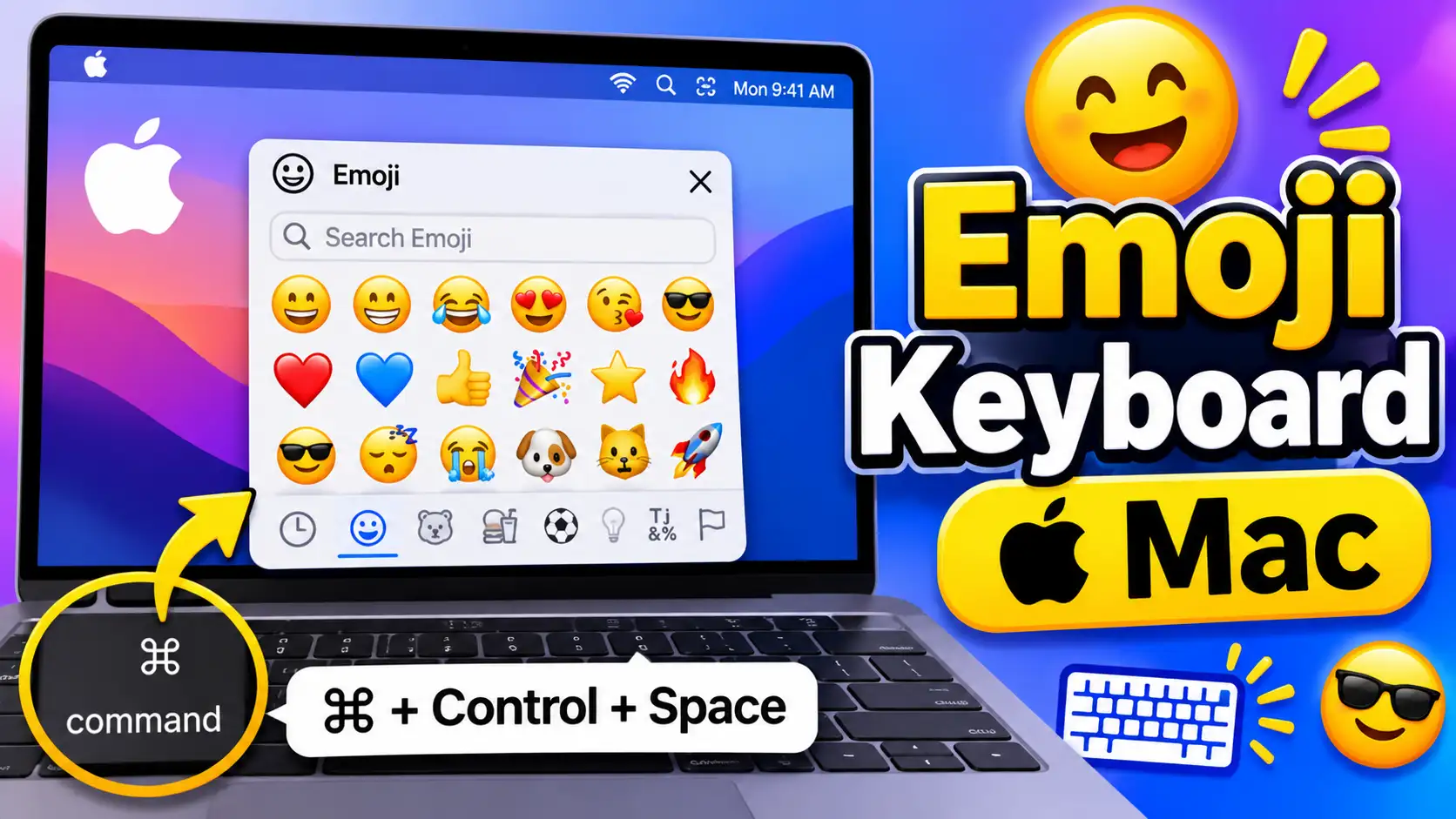
Looking for the emoji keyboard on your Mac? You’re not alone. Unlike an iPhone, a Mac doesn’t show an emoji keyboard on the screen, so many users never realize it’s built right in.
The good news is that opening it takes about a second. With the right shortcut, you can add 😊, 🔥, or 👍 to messages, emails, documents, and social posts without leaving your keyboard.
In this guide, you’ll learn every way to open the emoji keyboard on Mac, how to search and customize it, and how to fix it when it stops working. It works on every Mac, from a MacBook Air to an iMac.
Quick Answer:
Press Control + Command + Space. The emoji picker opens right next to your cursor. Type a keyword such as “heart” to search, then click an emoji to insert it.
If your Mac has a Globe (🌐) key in the bottom-left corner, you can press it once instead. If it does something else, you can change that in System Settings under Keyboard.
Prefer the mouse? Click Edit in the menu bar of most apps, then choose Emoji & Symbols. The emoji keyboard works in Messages, Notes, Mail, Safari, Pages, and most other apps.
What Is the Mac Emoji Keyboard?
The Mac emoji keyboard is a built-in tool called Emoji & Symbols, also known as the Character Viewer. It inserts emojis and special characters into almost any text field on your Mac. It includes:
- Emojis: smileys, people, animals, food, travel, objects, and flags
- Symbols: arrows, math signs, currency symbols, and punctuation
- Special characters: accented letters and other characters that aren’t on a standard keyboard
- Memoji stickers: available on newer versions of macOS
On an iPhone, the emoji keyboard stays on the screen. On a Mac, you open it on demand with a shortcut or a menu, pick an emoji, and it closes. This keeps your screen clear, but it means you have to know how to open it.
The picker comes in two views: a compact picker near your cursor for quick use, and the full Character Viewer with more categories and options.
How to Open the Emoji Keyboard on Mac (All Methods)
There are six ways to open the emoji keyboard on Mac. The first three are the fastest and most common.
Method 1: Use the keyboard shortcut (Control + Command + Space)
This works on almost every Mac.
- Click into any text field, such as a message, note, email, or document.
- Press Control + Command + Space at the same time.
- Type a keyword to search, or browse the categories.
- Click an emoji to insert it.
Tip: Press Esc to close the picker without choosing anything.
Method 2: Use the Globe (🌐) or Fn key
Many newer Mac keyboards have a Globe key in the bottom-left corner. On older keyboards, it’s the Fn key. To make it open the emoji picker:
- Open System Settings and select Keyboard.
- Find “Press 🌐 key to” (on older versions of macOS, “Press Fn key to”).
- Choose Show Emoji & Symbols.
If pressing the key changes your input language or starts dictation, this setting is usually the reason.
Method 3: Use the menu bar (Edit > Emoji & Symbols)
Click into a text field, click Edit in the menu bar at the top of your screen, and choose Emoji & Symbols. This is a handy backup if a keyboard shortcut isn’t responding.
Method 4: Use the Input menu in the menu bar
This puts a small icon at the top-right of your screen, so the picker is always one click away. Open System Settings > Keyboard, click Edit under Text Input, and turn on Show Input menu in menu bar. Then click the icon and choose Show Emoji & Symbols. On older versions of macOS, look under System Preferences > Keyboard > Input Sources.
Method 5: Use the Touch Bar (older MacBook Pro models)
Some MacBook Pro models from 2016 to 2022 have a Touch Bar. Click into a text field, tap the emoji button on the Touch Bar, swipe through the categories, and tap an emoji. Newer Macs don’t have a Touch Bar, so use another method.
Method 6: Use the on-screen Accessibility Keyboard
This keyboard appears on your screen and can be clicked with a mouse or trackpad. It helps if a physical key is broken or typing is difficult. Turn it on under System Settings > Accessibility > Keyboard, then open the picker from Edit > Emoji & Symbols.
Which method should you use?
| Method | Speed | Setup needed | Best for |
|---|---|---|---|
| Control + Command + Space | Fastest | None | Everyday use |
| Globe / Fn key | Very fast | Quick settings check | Newer keyboards |
| Edit > Emoji & Symbols | Moderate | None | Mouse users, backup |
| Input menu | Fast | Turn on in settings | Always-visible icon |
| Touch Bar | Fast | None | Older MacBook Pros |
| Accessibility Keyboard | Slower | Turn on in settings | Accessibility needs |
For most people, the Control + Command + Space shortcut is the best choice.
How to Use the Emoji Picker on Mac
Once the picker is open, a few features help you find the right emoji quickly.
- Search: Type in the search box at the top. Try “heart,” “laugh,” or “party.” Press Return to insert the first result.
- Browse: Use the category icons along the bottom, such as Smileys & People, Food & Drink, Objects, Symbols, and Flags.
- Frequently Used: The emojis you use most appear at the top, so your go-to 😂 or 👍 is always within reach.
- Skin tone: Click and hold an emoji like 👍 or 👋, then choose a tone. Your Mac usually remembers your choice.
- Insert: Click an emoji, or use the arrow keys and Return. Some apps need a double-click.
To open the full Character Viewer, click the expand icon in the top-right corner of the picker. There you can browse more categories such as arrows, math symbols, and currency signs, add characters to Favorites, and customize the sidebar with the gear icon.
Customize and Speed Up Your Workflow
Create text replacements for your favorite emojis
Text replacements turn a short code into an emoji. For example, type :fire: and get 🔥.
- Open System Settings > Keyboard > Text Replacements.
- Click the + button.
- Type your shortcut (such as
:fire:) in the Replace field and paste the emoji in the With field. - Click Add or Done.
Start shortcuts with a colon so they never trigger by accident in normal words, and keep them short and memorable. If you use iCloud, your text replacements usually sync to your other Apple devices.
Use Favorites and symbols
In the full Character Viewer, add your most-used emojis and symbols, such as ✓, →, and ©, to Favorites for one-click access. You can also search for currency signs (€ £ ¥), math symbols (± ÷ ≠), and trademark marks (™ ®).
Optional extras
On newer versions of macOS, you can dictate emojis by saying “heart emoji” while dictating. Launcher apps such as Raycast and Alfred, and the app Rocket, offer even faster emoji search, but the built-in picker covers most needs.
Where the Emoji Keyboard Works on Mac
The picker works in most places where you can type: Messages, Notes, Mail, Reminders, Pages, Numbers, Keynote, Safari, Chrome, Firefox, Slack, Discord, and social media sites in a browser.
Some places have limits:
- Terminal and code editors: emojis may cause spacing or font problems.
- Older apps: they may not support the picker or may show boxes.
- Design software: tools like Photoshop use their own text engines, so emojis can look different or be unavailable.
- Password fields and some web forms: emojis are often blocked. If a site rejects an emoji, the limit comes from the website, not your Mac.
In documents and email, remember that an emoji’s look depends on the reader’s device, and older email clients may show empty boxes. If the shortcut doesn’t work in one app, try Edit > Emoji & Symbols, or copy an emoji from another app and paste it in.
Emoji Support by macOS Version
New emojis are added to the Unicode standard about once a year, and Apple includes them in later macOS updates. If your Mac is out of date, you may see a blank box or question mark instead of the newest emojis. The same happens when someone sends you an emoji your Mac doesn’t support yet.
To update, open System Settings > General > Software Update, install any available update, and restart. Back up with Time Machine first. Very old Macs may not be able to run the latest macOS, which limits the emojis they can show.
Emojis also look different across platforms. Apple, Google, Microsoft, and Samsung each draw their own artwork, so a 😁 from your Mac may look slightly different on Windows or Android. If tone matters, such as in a work email, choose a clear, widely understood emoji.
Troubleshooting: Emoji Keyboard Not Working on Mac
The shortcut does nothing
- Check System Settings > Keyboard > Keyboard Shortcuts for conflicts, especially under Input Sources and Spotlight.
- Click into a text field first. The picker only opens where you can type.
- Quit keyboard utilities or launchers that may override the shortcut.
- Try Edit > Emoji & Symbols to confirm the picker itself works.
The Globe key doesn’t open the picker
Set “Press 🌐 key to” to Show Emoji & Symbols in System Settings > Keyboard. External keyboards may not send the Globe key signal, so use Control + Command + Space instead.
The picker is blank, frozen, or glitchy
Press Esc and reopen it, restart the app, then restart your Mac. Install pending updates under Software Update, since picker bugs are often fixed there.
Emojis show as boxes or question marks
The emoji is usually newer than your Mac or the app supports. Update macOS and the app. On a website or document, the cause may be the site’s font or encoding.
The picker won’t open in one app
Try Edit > Emoji & Symbols in that app, update the app, or paste an emoji copied from elsewhere.
Last resort
Remove unused input sources in System Settings > Keyboard, then use Keyboard Shortcuts > Restore Defaults.
Mac vs. Other Platforms
| Platform | How to open the emoji keyboard |
|---|---|
| Mac | Control + Command + Space or the Globe key |
| Windows | Windows key + . or Windows key + ; |
| iPhone / iPad | Tap the smiley or Globe icon on the keyboard |
| Chromebook | Search + Shift + Space |
| Linux | Varies by desktop environment |
On a phone, the emoji keyboard is always on the screen. On a computer, it’s a pop-up you open when you need it, which is why a shortcut makes such a difference. In iPhone, add the Emoji keyboard under Settings > General > Keyboard > Keyboards if you don’t see the icon.
Pro Tips and Shortcuts Roundup
| What you want to do | How to do it |
|---|---|
| Open the emoji picker | Control + Command + Space |
| Open it with one key | Globe (🌐) key, after setup |
| Open it from the menu | Edit > Emoji & Symbols |
| Insert the top search result | Press Return |
| Move through emojis | Arrow keys |
| Close without choosing | Esc |
| Change skin tone | Click and hold the emoji |
| Create a typing shortcut | System Settings > Keyboard > Text Replacements |
For a keyboard-only workflow, press Control + Command + Space, type a keyword like “party,” use the arrow keys to highlight an emoji, and press Return. Once it’s a habit, adding an emoji takes a couple of seconds.
- Learn one method well instead of memorizing all six.
- Use specific search terms like “folded hands” to find the right emoji faster.
- If an emoji won’t insert in an app, copy it with Command + C and paste it with Command + V.
- Keep your Mac updated so newer emojis show up.
Frequently Asked Questions
What is the shortcut for emoji on Mac?
Press Control + Command + Space. On Macs with a Globe (🌐) key, you can press that instead once it’s set to open Emoji & Symbols in your Keyboard settings.
Why isn’t my Globe key opening emojis?
It may be set to another action, such as changing the input language or starting dictation. Choose Show Emoji & Symbols under “Press 🌐 key to” in System Settings > Keyboard. An external keyboard may not send the Globe key signal, so use Control + Command + Space instead.
How do I add the emoji keyboard to the menu bar?
Open System Settings > Keyboard, click Edit under Text Input, and turn on Show Input menu in menu bar. Then click the new icon and choose Show Emoji & Symbols.
Can I use emojis on a Mac without a touchscreen or Touch Bar?
Yes. Every Mac supports the picker through the keyboard shortcut, the Globe key, or Edit > Emoji & Symbols in the menu bar.
Why are some emojis missing on my Mac?
Newer emojis arrive through macOS updates. Install the latest version under System Settings > General > Software Update. Very old Macs may not be able to update, which limits the emojis they can display.
How do I change emoji skin tone on Mac?
Open the picker, click and hold an emoji that supports skin tones, such as 👍 or 👋, and choose the tone you want. Your Mac usually remembers it.
Is there a way to type emojis faster on Mac?
Yes. Set up text replacements such as :fire: for 🔥, use Frequently Used and Favorites, and press Return to insert the top search result.
Conclusion
The emoji keyboard on Mac is built in, fast, and easy to use once you know where to find it. The quickest way to open it is Control + Command + Space, or the Globe (🌐) key if you set it up.
From there, you can search by keyword, change skin tones, save favorites, and create text replacements. If something isn’t working, updating macOS and checking your Keyboard settings fixes most problems.
Bookmark this guide or save the shortcut somewhere handy, and you’ll never have to hunt for the emoji keyboard again.
Want to use emojis in more places? Check out our other guides:
- Emoji in Outlook: How to Add Emojis to Your Emails
- Cute Emoji Combos to Copy and Paste
Have a favorite Mac emoji tip or shortcut? Share it in the comments below!

Hi, I’m Benjamin Dreyer. 😊 I enjoy exploring the world of emojis and digital communication, making emoji meanings and expressions simple to understand. At Defineexa.com, I write about emojis, their meanings, text abbreviations, acronyms, and internet slang. My goal is to provide clear, accurate, and easy-to-read explanations that help readers understand what different emojis and online expressions mean, how they’re used, and how they can communicate with confidence in everyday conversations. 💬